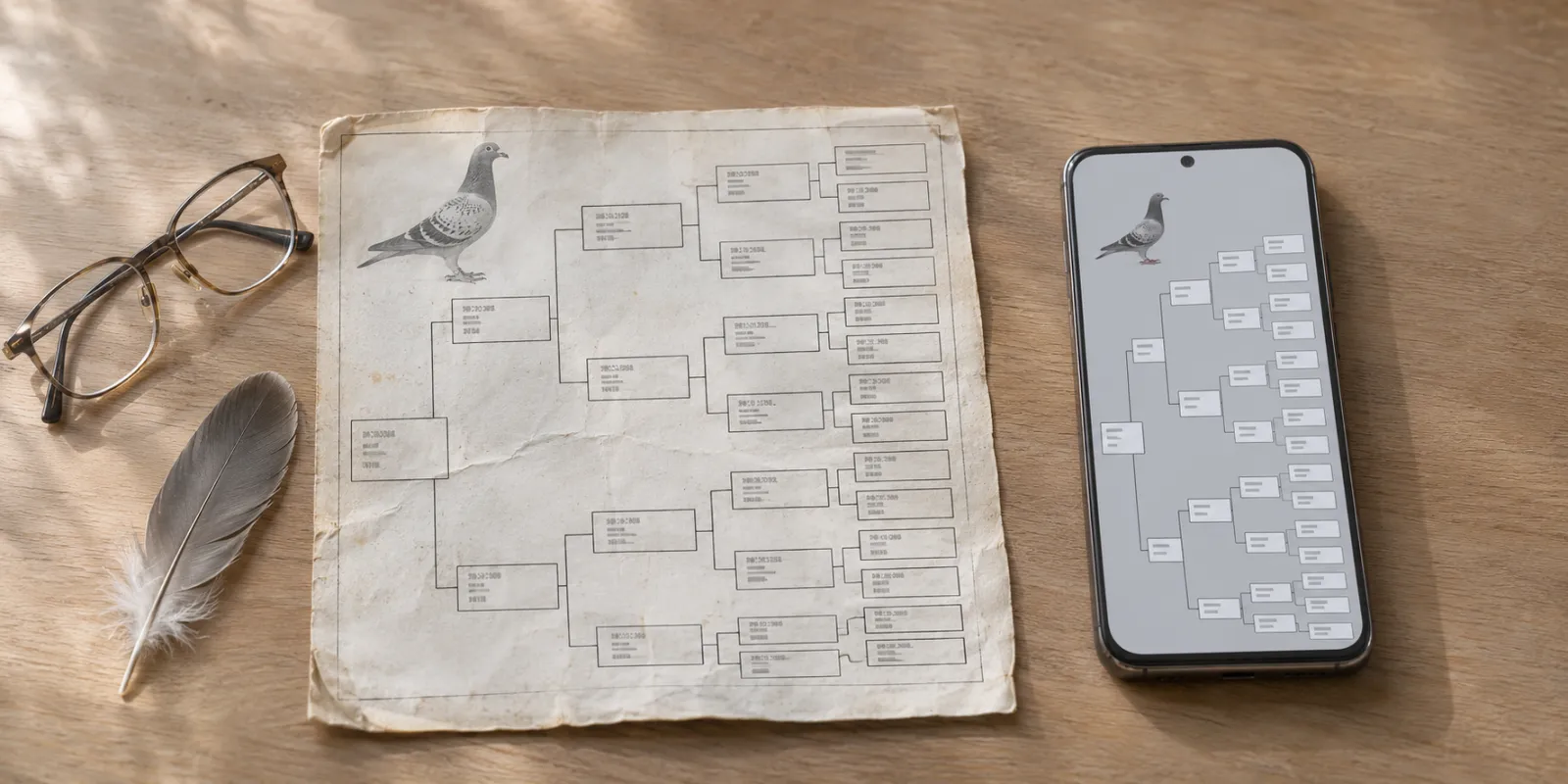
Typing a pedigree in by hand takes a quarter of an hour, and one wrong digit in a ring number is easy to miss. In Pigeclub you import it instead: take a photo, and Pigeclub reads the pigeons and builds the family tree.
What you can import
- A photo from your phone or camera: JPG, PNG or WebP.
- A PDF, for example a pedigree another breeder sent you by email.
- Several files at once, or a whole folder. Pigeclub imports them one after another.
Each file can be up to 30 MB.
Step by step
- Open Pigeclub on your phone, your computer or in the browser.
- Choose Import.
- Take a photo of the pedigree or choose a file.
- Wait while Pigeclub reads the pedigree.
- Check the result. Choose Compare with original pedigree to see the photo next to what was read.
- Correct a field if needed, and save.
Every pigeon in the pedigree is added to your pigeons. When you import another pedigree with the same ancestor, Pigeclub recognises it by its ring and does not add it twice.
How to take a good photo
- Lay the pedigree flat, ideally on a dark table.
- Use daylight, without the flash.
- Hold the phone parallel to the paper, with the whole pedigree in the frame.
- Keep the shadow of your hand and phone off the page.
If Pigeclub can't read a pedigree, a sharper photo usually helps.
A PDF is best
If you have the pedigree as a PDF, import the file instead of photographing a printout. The text in a PDF is sharp, so Pigeclub reads it without mistakes.
What next
You can print imported pigeons in a new pedigree straight away, or add their race results. See also